← Help & support
Everyone

Meals and school lunches

Plan the week’s dinners, keep the school lunch menu in one place, and let kids pick what they’ll have.

Plan dinners

  1. Open the ☰ menu and tap Meals. You see the week, a day at a time.
  2. Tap + Plan a meal, or + Add on a day. Say what it is, who’s cooking and when.
  3. Or tell Rumpus in chat: “Tacos on Tuesday, I’m cooking.”
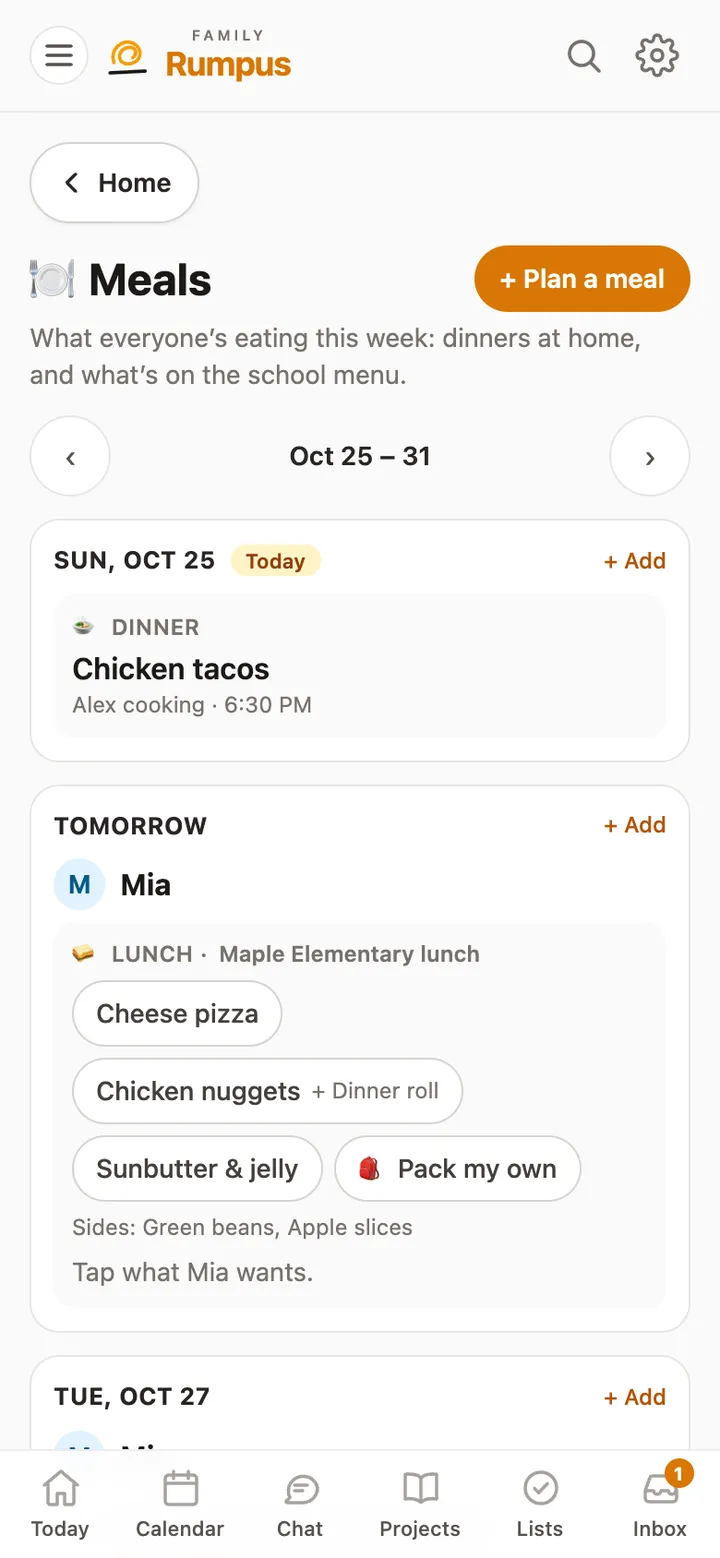
Meals for the week: chicken tacos tonight with Alex cooking, and Mia’s school lunch choices for tomorrow

Add the school lunch menu

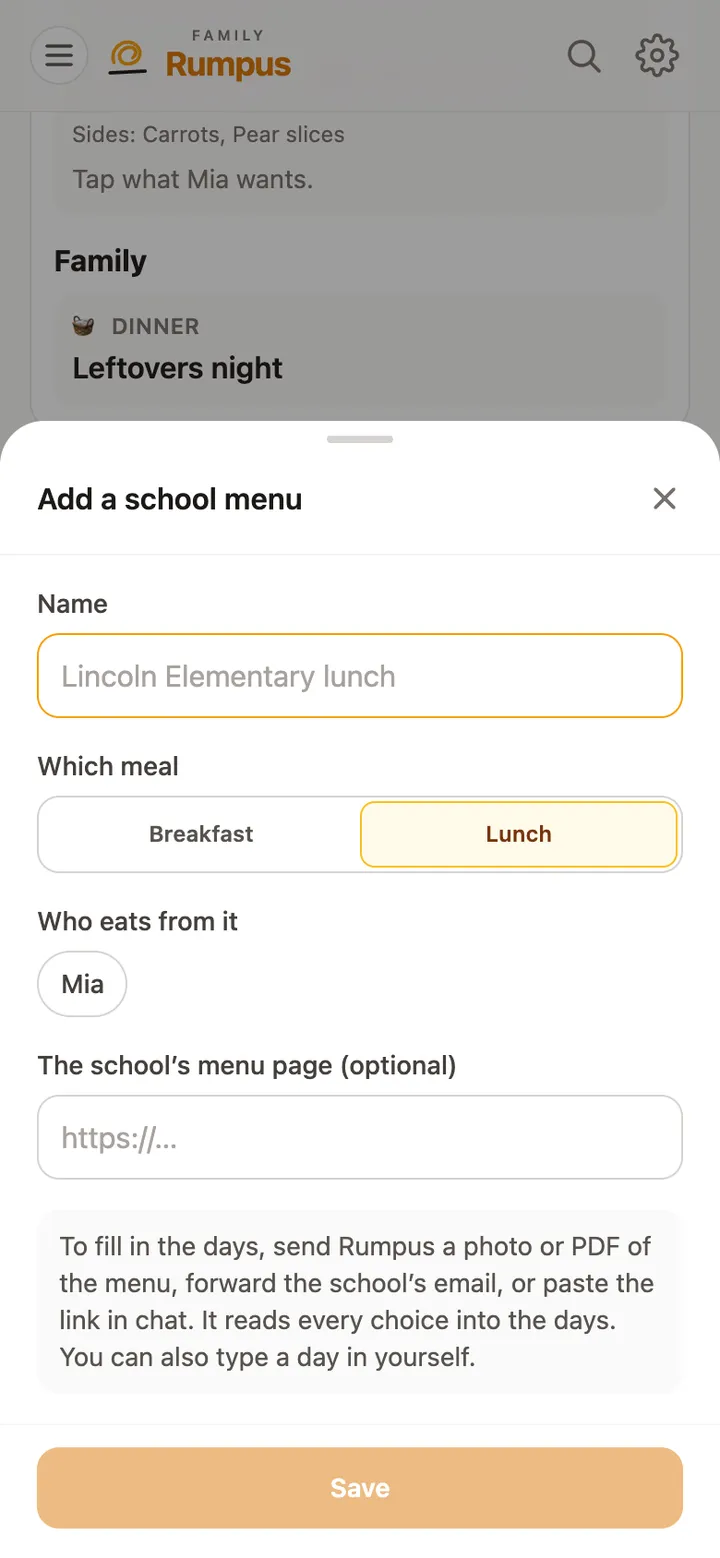
  1. On Meals, tap + Add a school menu. Name it, choose which meal, and who eats from it.
  2. Then send Rumpus the menu in chat: a photo, the PDF, the school’s email, or a link to the menu page. It puts every choice on its day.
  3. Send each new menu when the school puts it out.
The Add a school menu sheet: name, which meal, who eats from it, and the menu page

Kids pick their lunch

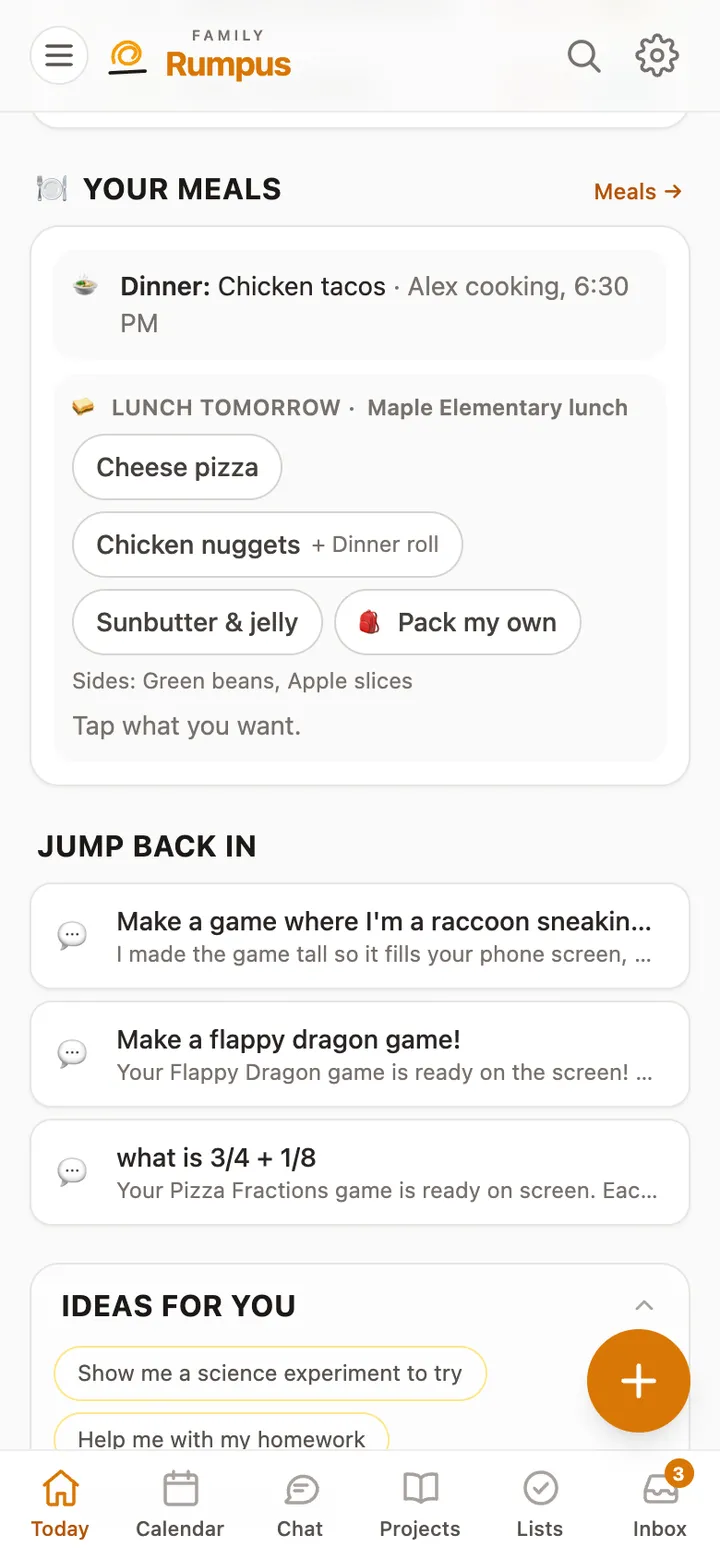
  1. On their Today screen, a child sees Your meals: today’s dinner and the next school lunch.
  2. They tap what they want. Tapping another choice changes it.
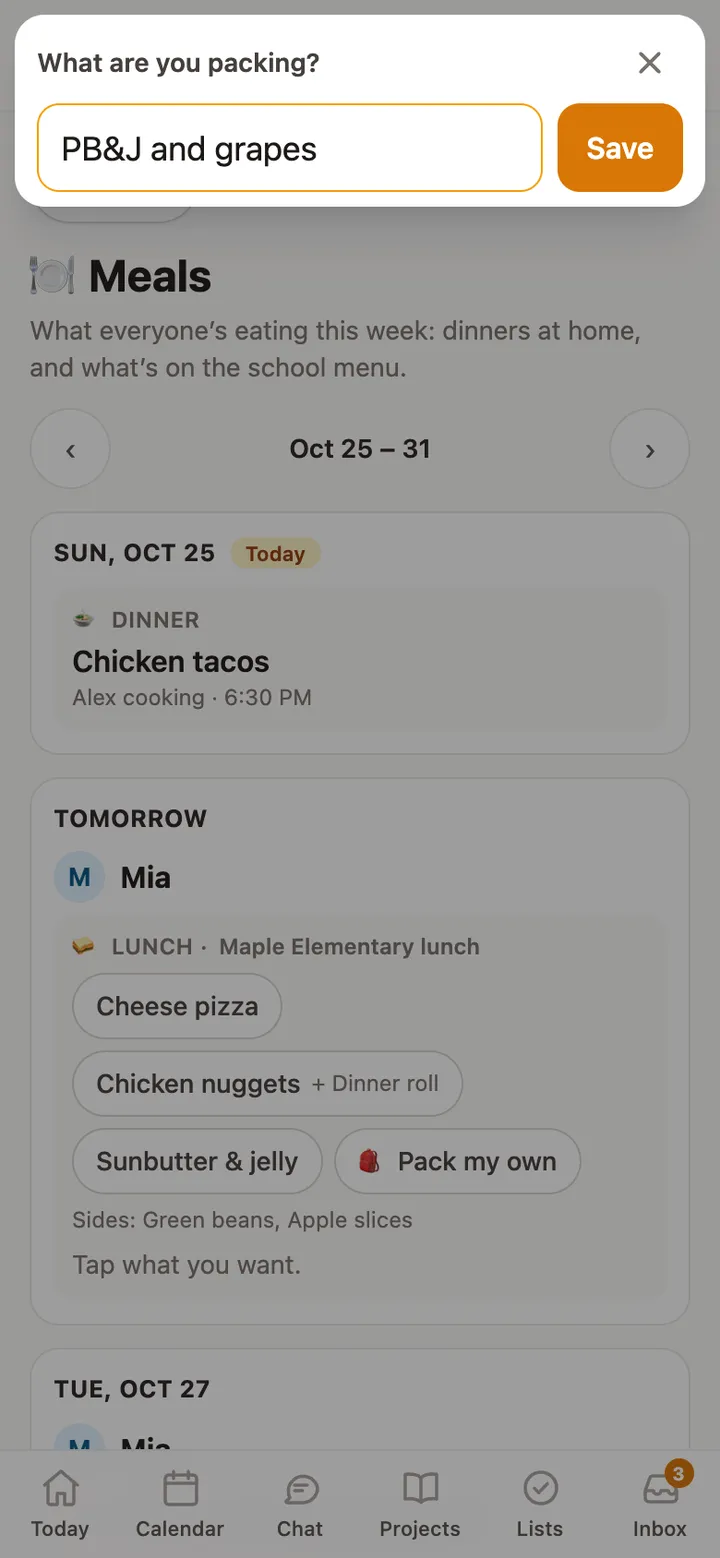
  3. Bringing lunch from home? Tap 🎒 Pack my own and type what’s in it. It shows as “Packing my own: …”, and tapping it again changes it.
  4. Grown-ups can pick for a child too, on Meals.
Mia’s Today screen: tonight’s dinner and tomorrow’s lunch choices to tap
The Pack my own box, with PB&J and grapes typed in

The evening reminder

  1. Around 6 in the evening, a child who hasn’t picked tomorrow’s school lunch gets one reminder.
  2. If the child doesn’t get notifications on any device, the grown-ups are told instead.
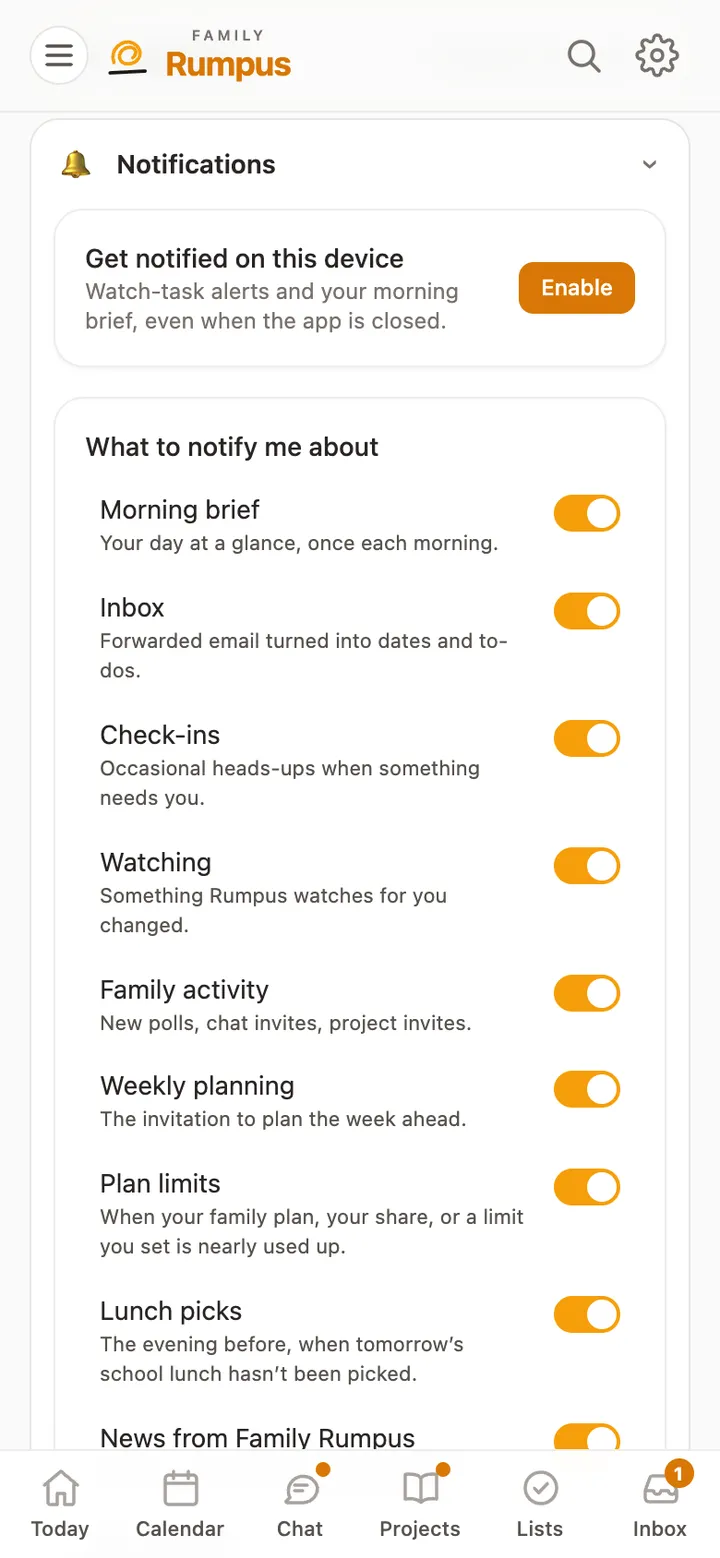
  3. To stop it, switch off Lunch picks in Settings, Notifications.