On iPhone or iPad
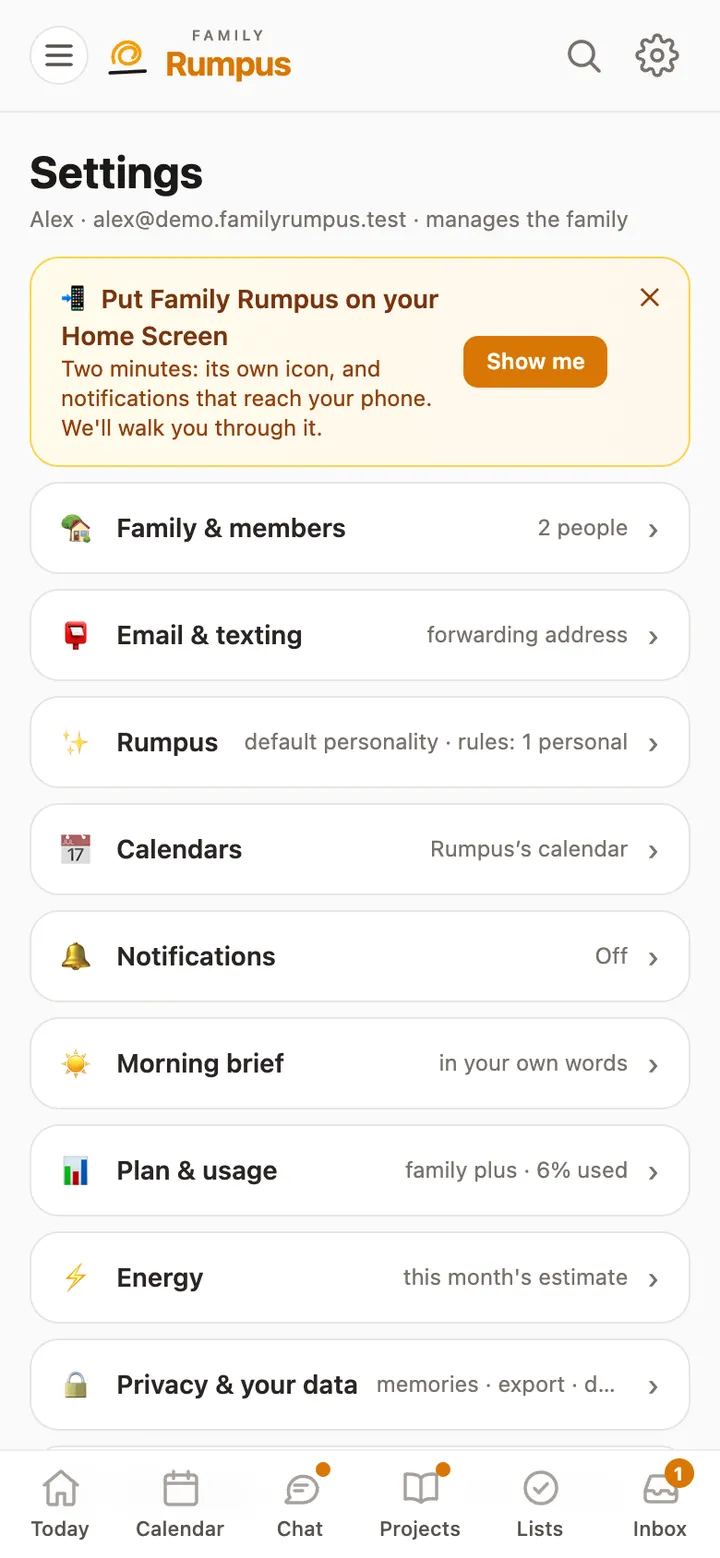
- In Safari, open Rumpus and go to Settings. Tap Show me on Put Family Rumpus on your Home Screen. (Hid it? It’s under This device, Home Screen.)
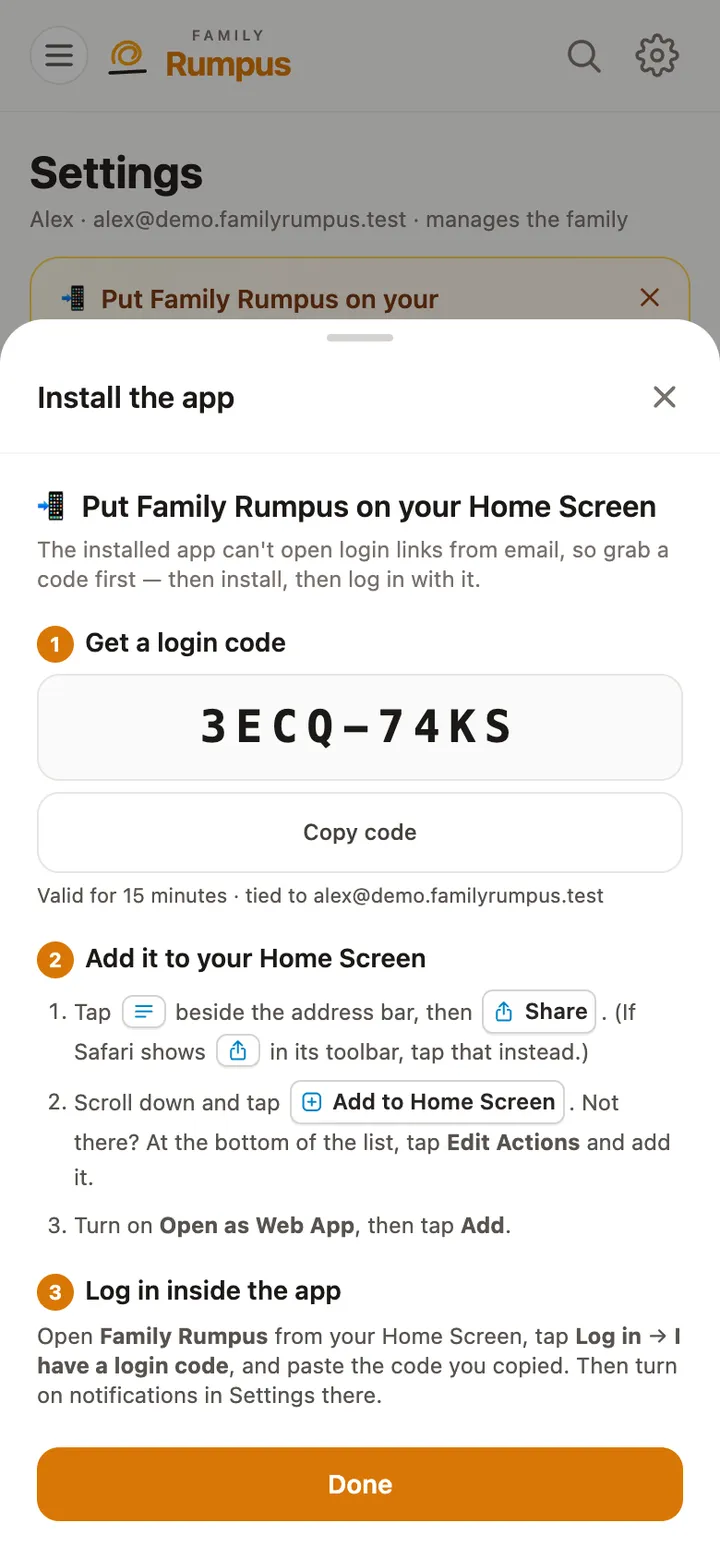
- Tap Create my login code and copy it. Rumpus on your Home Screen can’t open sign-in links from email, so this code is how you sign in there.
- On iPhone: tap beside the address bar (on iOS 26 it’s ), then Share. If Safari shows in its toolbar, tap that instead.
- On iPad: tap Share at the top of Safari, then View More (on iPadOS 26, ).
- Tap Add to Home Screen. Not in the list on iPhone? At the bottom, tap Edit Actions and add it. Turn on Open as Web App, then tap Add.
- Open Family Rumpus from your Home Screen, tap Log in, then I have a login code, and paste the code.
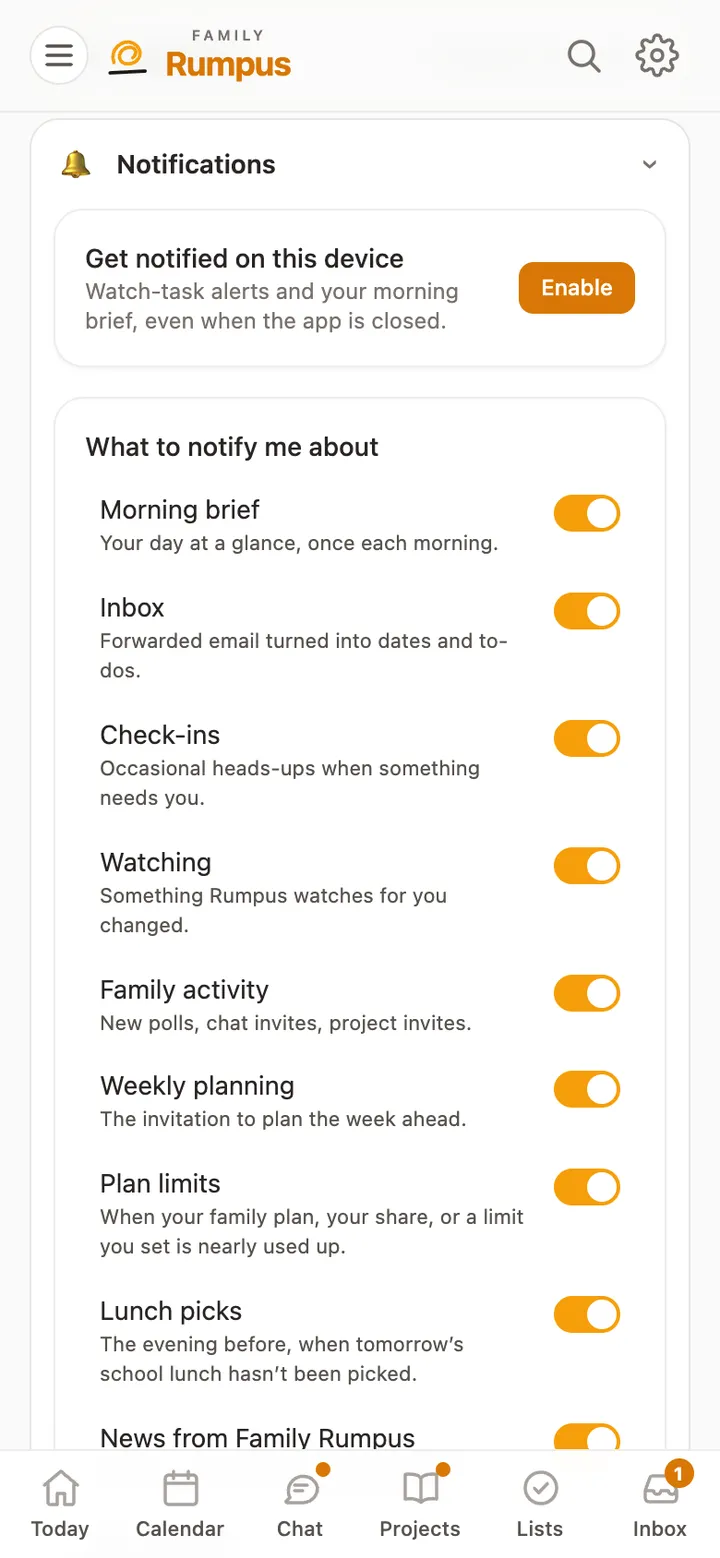
- Then switch on notifications there: Settings, Notifications, Enable.
On iPhone and iPad, Apple only sends a website’s notifications once it’s on the Home Screen, so this step is what makes them work.