← Help & support
Parents

Add your family and sign kids in

Add everyone in the house, then sign a child in on their own device with a code. No email needed.

Add the people in your family

  1. Tap the gear at the top right to open Settings, then Family & members.
  2. Tap + Add family member. Type their name and choose Kid, Teen, Parent or Caregiver.
  3. Add an email for a grown-up who wants their own sign-in. Children don’t need one.
  4. About them is optional: interests, allergies, quirks. Rumpus keeps it in mind when it helps.
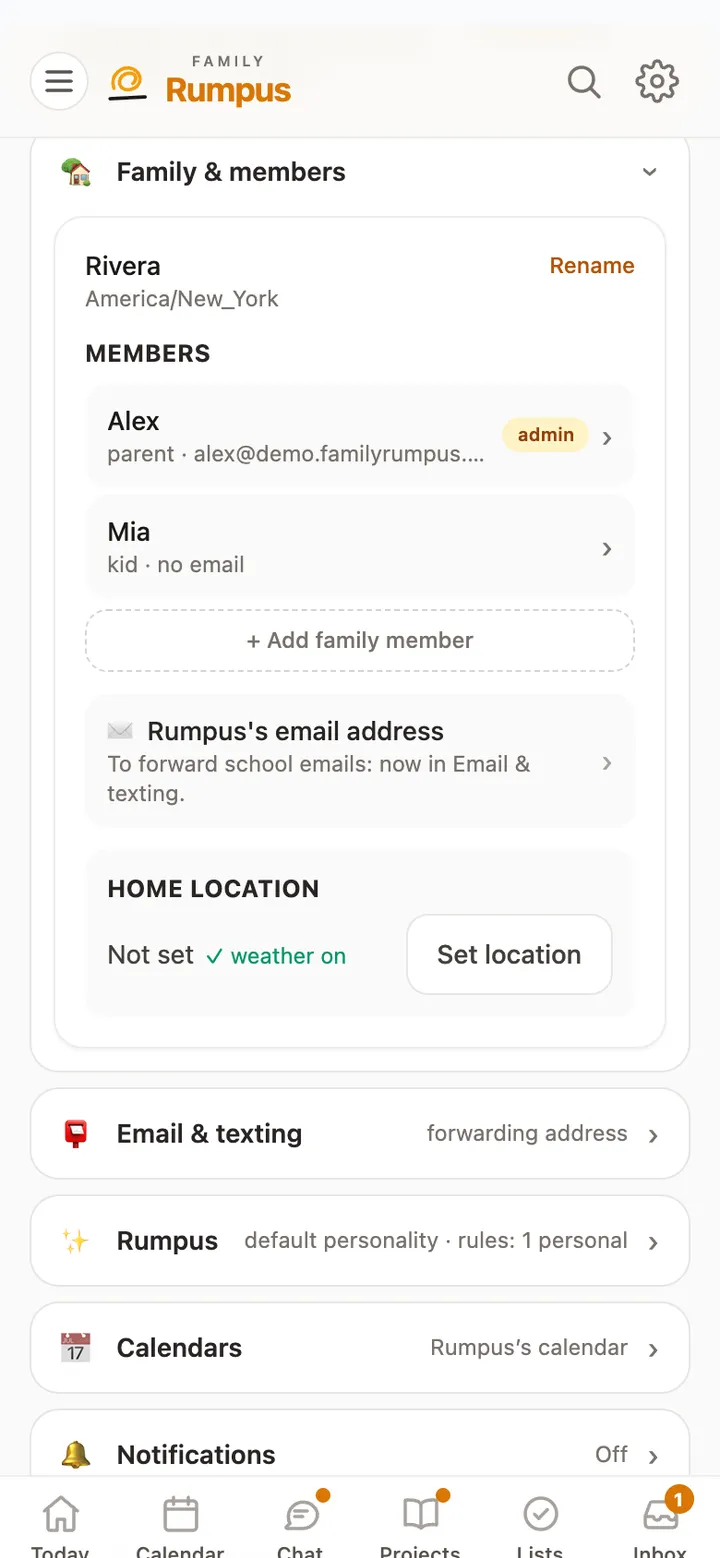
Settings, Family & members: Alex (parent) and Mia (kid), with the button to add a family member

Sign a child in on their own device

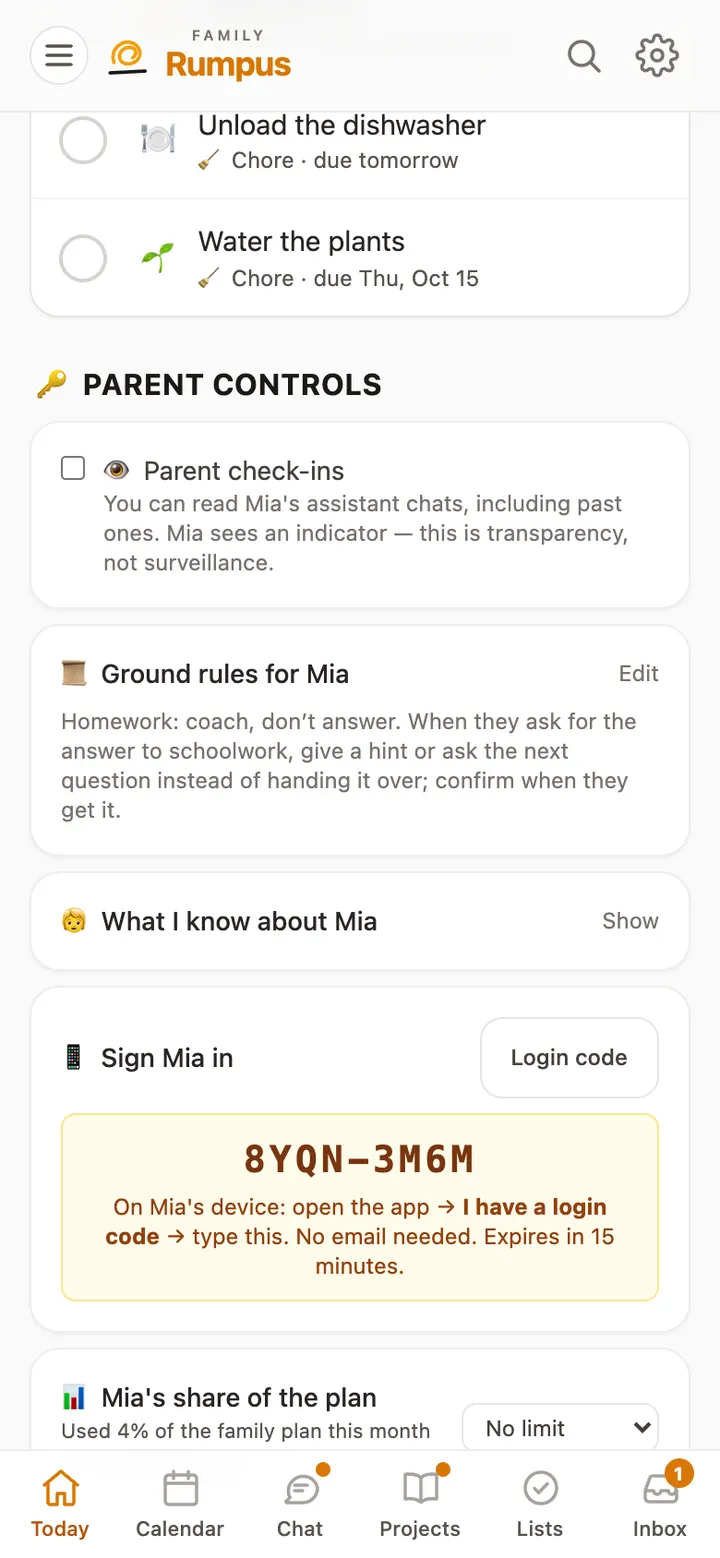
  1. Open the ☰ menu, tap Kids, then the child’s name.
  2. Tap 📱 Sign Mia in (with your child’s name), then Login code.
  3. On the child’s phone or tablet, open Rumpus, tap I have a login code and type the code. It works for 15 minutes.

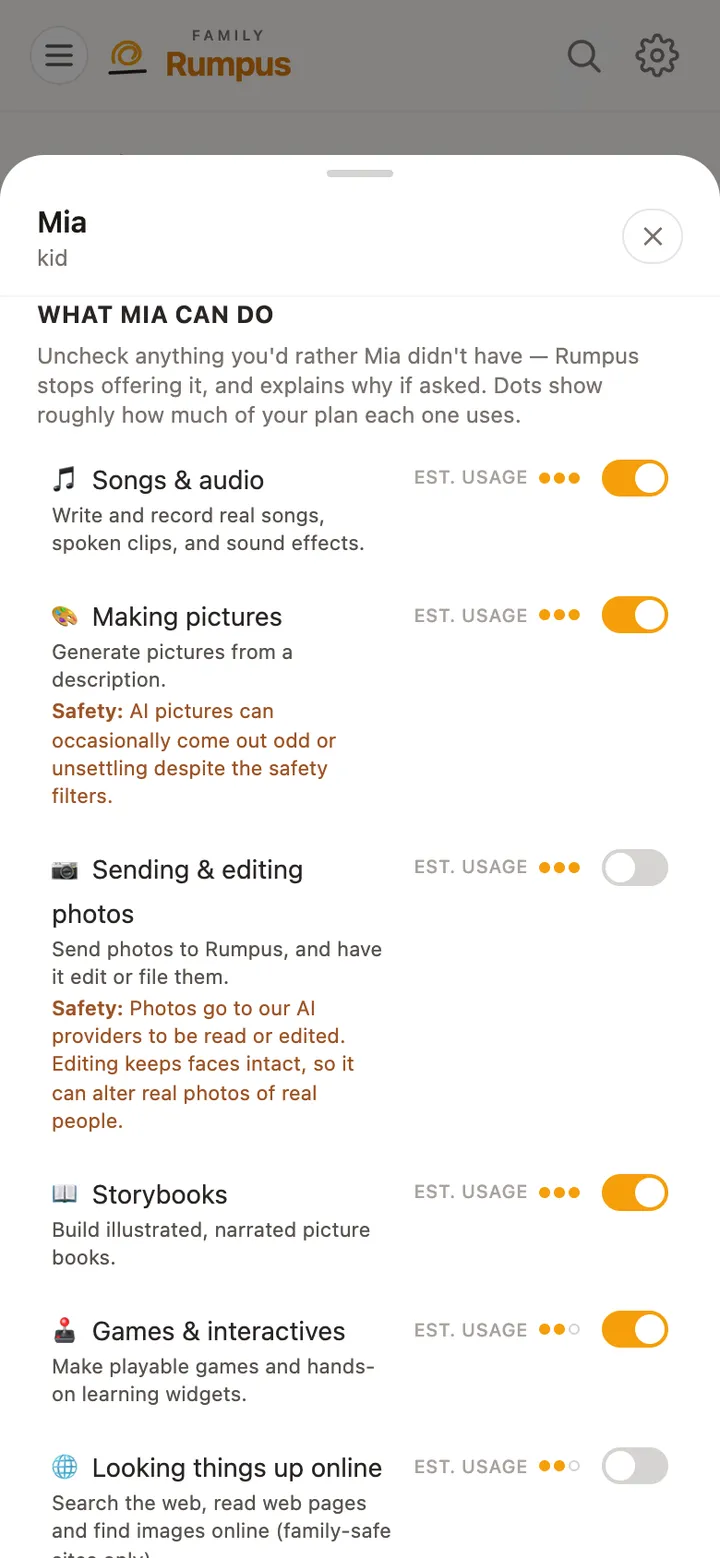
A child sees their own chats and what the family shares, never a grown-up’s private chats or lists. You choose which features each child can use.

Mia’s page showing a login code to type on her own device